Authentication
Kure Monitor 2.3+ uses two separate auth mechanisms:
- User accounts for dashboard traffic (base roles
adminandmember, with granular permissions governed by Teams). - Keycloak SSO for enterprise OpenID Connect single sign-on with optional group filtering.
- A shared service token for agent and security-scanner traffic.
Both local auth and service tokens are wired up automatically by the Helm chart — there is nothing to configure at install time. Keycloak SSO can be enabled via Helm values or dynamically configured via the Admin panel. The legacy AUTH_API_KEY / auth.apiKey single-key model was removed in 2.3.0. See the 2.2 → 2.3 migration guide for the upgrade path.
Dashboard (user accounts & base roles)
Section titled “Dashboard (user accounts & base roles)”On first visit, the dashboard prompts the very first user to create the initial admin account (username + password). Once signed in, invite further users from Admin → Settings → Users & Teams and assign a base role:
| Role | Description |
|---|---|
admin |
Full cluster access. Can view all tabs and namespaces, manage users, teams, SSO settings, LLM providers, and notification integrations. |
member |
Regular user. Dashboard navigation, accessible tabs, namespace visibility, and mutating permissions are governed by the user’s assigned Teams. |
Sessions are carried in an HttpOnly cookie called kure_session, signed with SESSION_SECRET. Login is rate-limited (5 attempts per 30 seconds).
Teams & Granular RBAC
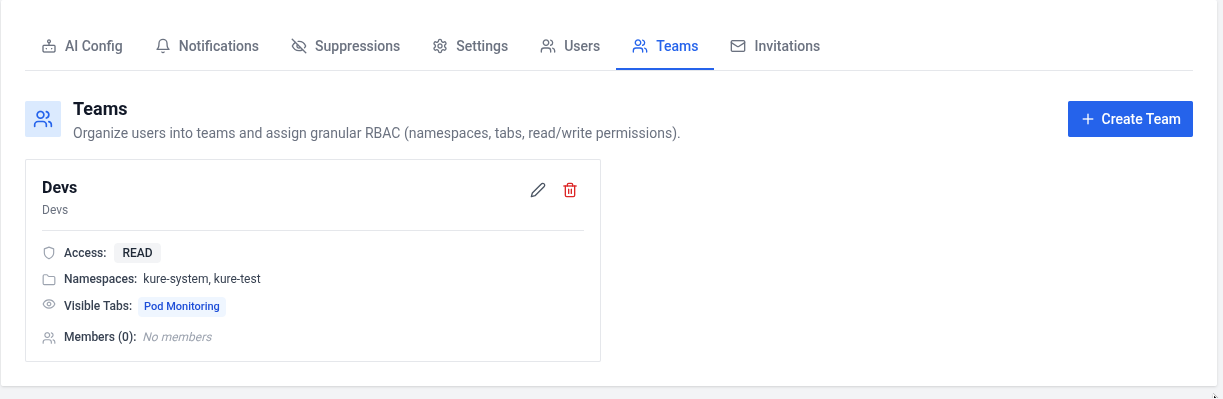
Section titled “Teams & Granular RBAC”Kure Monitor provides multi-tenant team access control to restrict what engineers can view and mutate across the cluster. Administrators manage teams from Admin → Settings → Users & Teams → Teams:
Team Configuration
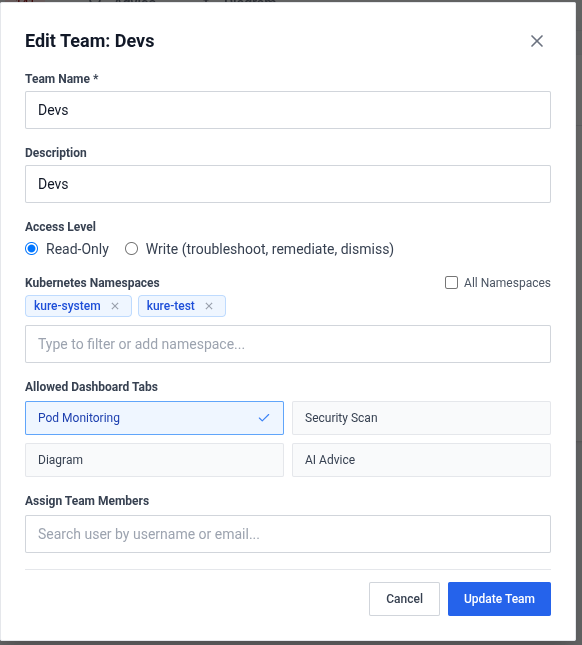
Section titled “Team Configuration”- Allowed Tabs: Select which dashboard tabs team members can access:
Pod Monitoring(Failing pods & Live pods)Security Scan(Audit findings & compliance)Diagram(Interactive topology graph)AI Advice(Hygiene recommendations)
- Namespace Scoping: Restrict team visibility to specific cluster namespaces, or toggle All Namespaces for broad access. Administrators can pick from a live dropdown of all cluster namespaces.
- Access Level:
Read: Members can view data in permitted tabs/namespaces, stream live logs, and inspect manifests. Mutating operations (dismissing pods, ignoring advice, triggering scans, deploying mirror pods) are blocked.Write: Members can perform operational actions (resolve, investigate, dismiss, trigger rescans, deploy mirror pods) within their assigned namespaces.
- Members: Assign users to one or multiple teams. If a user belongs to multiple teams, their permissions union across namespaces and tabs.
Keycloak SSO Integration
Section titled “Keycloak SSO Integration”Kure Monitor supports enterprise single sign-on (SSO) via Keycloak using OpenID Connect (OIDC). When SSO is enabled, a Sign in with Keycloak button is presented on the login screen.
1. Configuration via Helm Chart
Section titled “1. Configuration via Helm Chart”Enable Keycloak directly during deployment using values.yaml:
keycloak:  enabled: true  serverUrl: "https://keycloak.example.com"      # Keycloak base URL  realm: "kure"                                  # Realm name  clientId: "kure-monitor"                       # Client ID registered in Keycloak  clientSecret: ""                               # Plain client secret (or use existingSecret)
  # Secure secret handling via existing Kubernetes Secret:  existingSecret: "kure-keycloak-secret"         # Kubernetes Secret name  existingSecretKey: "client-secret"             # Key inside Secret holding client secret
  # Role & Group mappings:  adminRole: "kure-admin"                        # Realm role that grants Kure Monitor admin privileges  adminGroup: "platform-admins"                  # (Optional) Keycloak group that grants admin privileges  allowedGroups: "developers,devops,sre"         # (Optional) Restrict access to members of these groups  scopes: "openid profile email"
2. Configuration via Admin UI
Section titled “2. Configuration via Admin UI”Administrators can also configure and test Keycloak SSO at runtime:
- Navigate to Admin → Settings → SSO / Keycloak.
- Toggle Enable Keycloak SSO.
- Supply the Server URL, Realm, Client ID, and Client Secret.
- Configure optional role and group mappings:
- Admin Realm Role: Defaults to
kure-admin. Users with this role receive full admin privileges. - Admin Group: Specify a Keycloak group (e.g.
/platform-admins) whose members automatically receive admin access in Kure Monitor. - Allowed Groups: Optional comma-separated list of Keycloak groups (e.g.
developers,platform-team). If set, only users belonging to at least one of these groups are permitted to log in.
- Admin Realm Role: Defaults to
- Click Save Configuration.
Note: Helm-injected environment variables take precedence over UI-configured database values. The UI indicates when values are locked by Helm environment variables.
3. Keycloak Client Setup Checklist
Section titled “3. Keycloak Client Setup Checklist”- Client Protocol:
openid-connect - Access Type / Client Authentication: Confidential (
Client authentication: ON) - Valid Redirect URIs:
https://<kure-domain>/api/auth/sso/callback(andhttp://localhost:8080/api/auth/sso/callbackfor local testing) - Web Origins:
+or your dashboard domain - Group Membership Mapper: Ensure a client mapper or realm mapper of type Group Membership is configured with token claim name
groupsand full path enabled, so group-based gating can evaluate group membership.
Service-to-service (agent + security scanner)
Section titled “Service-to-service (agent + security scanner)”Agent and scanner authenticate to the backend with a shared SERVICE_TOKEN:
- Sent as the
X-Service-TokenHTTP header. - Sent as
?token=<value>on WebSocket connections.
Bootstrap Secret
Section titled “Bootstrap Secret”The Helm chart creates a Secret named <release>-bootstrap on first install with two randomly generated keys (randAlphaNum 48):
service-token— mounted asSERVICE_TOKENin backend, agent, scanner.session-secret— mounted asSESSION_SECRETin the backend.
On helm upgrade, the chart uses lookup to read the existing values back, so tokens are preserved and active sessions stay valid.
Rotating tokens
Section titled “Rotating tokens”# Edit the Secret in placekubectl edit secret kure-monitor-bootstrap -n kure-system
# Restart the pods that read itkubectl rollout restart \ deployment/kure-monitor-backend \ deployment/kure-monitor-security-scanner \ -n kure-systemkubectl rollout restart daemonset/kure-monitor-agent -n kure-systemRotating session-secret invalidates all existing dashboard sessions and forces every user to log in again.
Exempt endpoints
Section titled “Exempt endpoints”These endpoints do not require user authentication:
Ingest (require X-Service-Token):
| Endpoint | Purpose |
|---|---|
POST /api/pods/failed |
Agent reports pod failures |
POST /api/pods/dismiss-deleted |
Agent dismisses deleted pods |
POST /api/security/findings |
Scanner reports findings |
POST /api/security/scan/clear |
Scanner clears findings |
POST /api/security/rescan-status |
Scanner reports rescan status |
DELETE /api/security/findings/resource/* |
Scanner deletes resource findings |
POST /api/metrics/security-scan-duration |
Scanner reports scan duration |
Always public:
| Endpoint | Purpose |
|---|---|
/health, /metrics |
Liveness / Prometheus scrape |
GET /api/auth/status |
Check whether initial admin setup is needed |
POST /api/auth/login |
Log in with username + password |
POST /api/auth/signup |
Create the initial admin (one-shot, only usable when no users exist) |
Encryption at rest
Section titled “Encryption at rest”LLM API keys configured via the Admin panel are encrypted before storage using a Fernet key (security.encryptionKey in Helm values). If left empty, the chart auto-generates one.